> ## Documentation Index
> Fetch the complete documentation index at: https://docs.lite.sa/llms.txt
> Use this file to discover all available pages before exploring further.

# Sandbox testing

> Configure test mode, routing, and an e-commerce channel before processing test payments with lite.

## Add a test connector

Your lite account manager will configure the test connector and sandbox credentials from the backoffice.

## Enable test mode

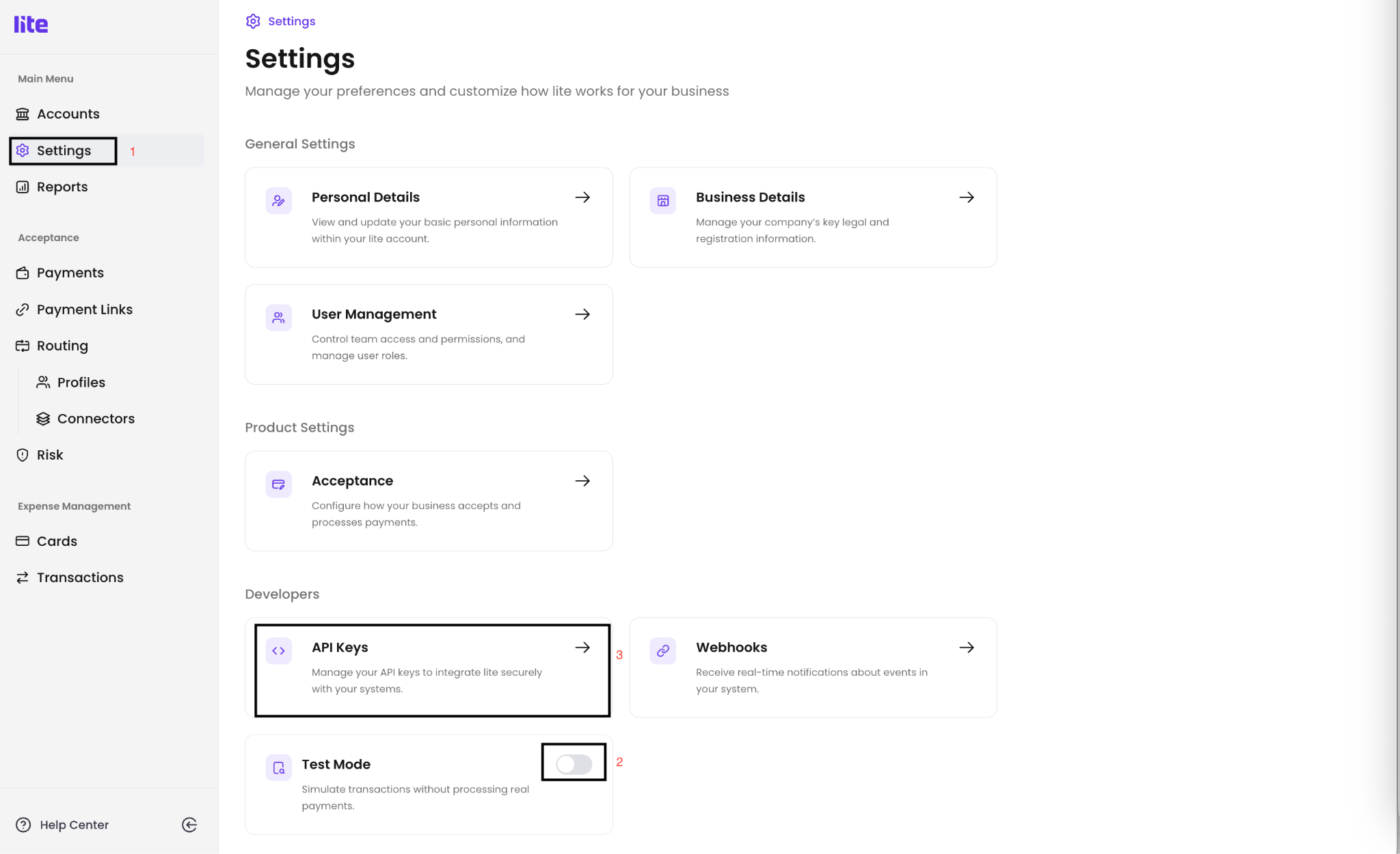
1. Go to **Settings > Developers** and enable **Test Mode**.
   <img src="https://mintcdn.com/lite-92e7ad3a/jSdZ8I1UAMPQe00h/assets/sandbox-testing/01-enable-test-mode.png?fit=max&auto=format&n=jSdZ8I1UAMPQe00h&q=85&s=d85502a6254f3a526d27d5fa358ec4be" alt="enable test mode" width="2048" height="1250" data-path="assets/sandbox-testing/01-enable-test-mode.png" />
2. Go to **API Keys** and select **Create API Key**.

   <img src="https://mintcdn.com/lite-92e7ad3a/jSdZ8I1UAMPQe00h/assets/sandbox-testing/02-create-test-api-key.png?fit=max&auto=format&n=jSdZ8I1UAMPQe00h&q=85&s=ccb2ca4b7880a4fef0167dabf52d9df7" alt="Create a test API key" width="2048" height="389" data-path="assets/sandbox-testing/02-create-test-api-key.png" />
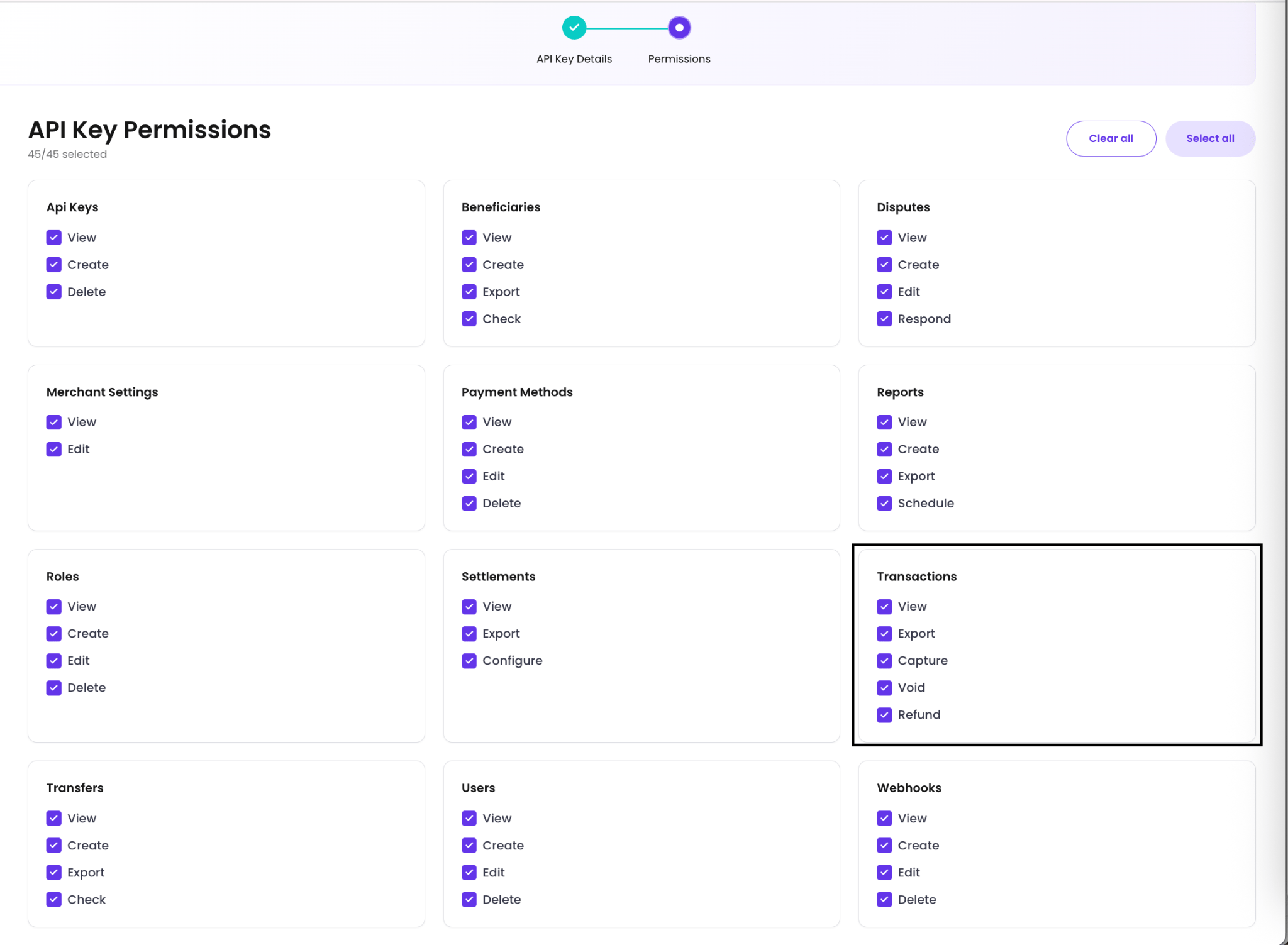
3. Select the required permissions. Make sure the payment permissions are enabled.
   <img src="https://mintcdn.com/lite-92e7ad3a/jSdZ8I1UAMPQe00h/assets/sandbox-testing/03-select-api-key-permissions.png?fit=max&auto=format&n=jSdZ8I1UAMPQe00h&q=85&s=eb21e1453a459298aa85814f19539707" alt="Select permissions for the test API key" width="2048" height="1503" data-path="assets/sandbox-testing/03-select-api-key-permissions.png" />
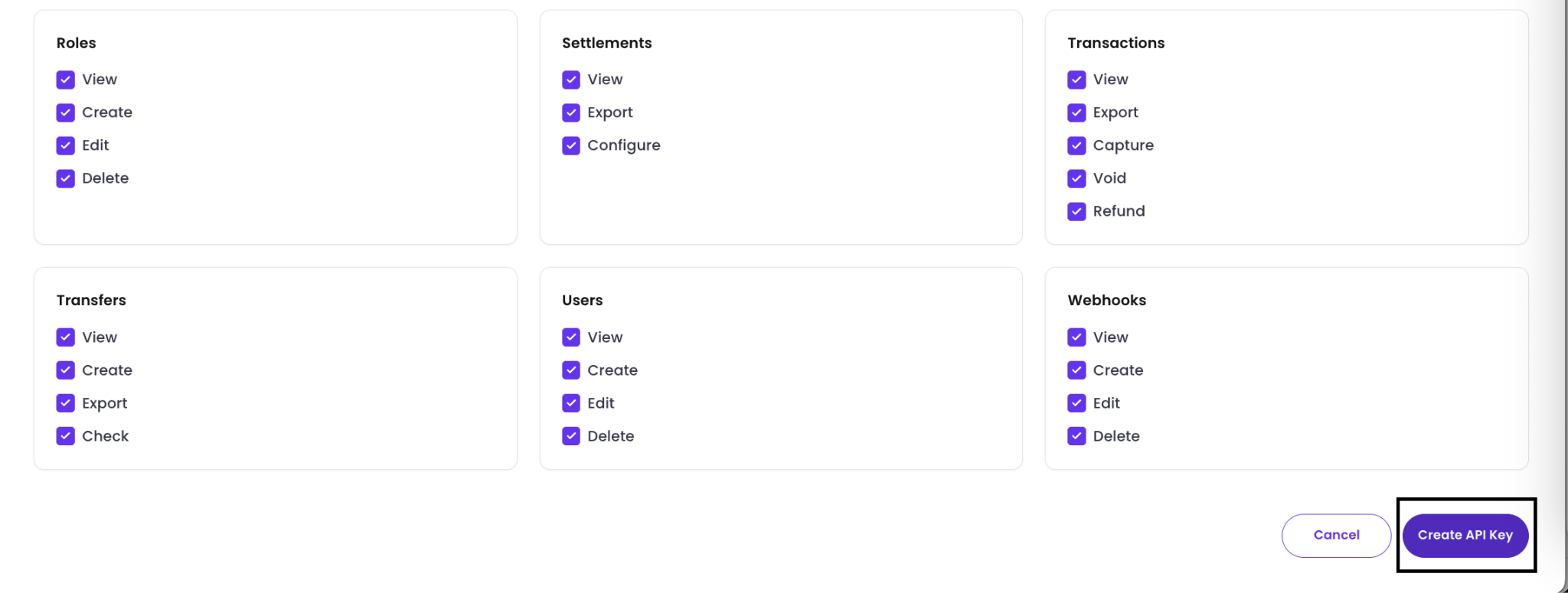
4. Select **Create API Key**, then use the generated key to process test payments.
   <img src="https://mintcdn.com/lite-92e7ad3a/jSdZ8I1UAMPQe00h/assets/sandbox-testing/04-generate-test-api-key.png?fit=max&auto=format&n=jSdZ8I1UAMPQe00h&q=85&s=224f7b24a47f1de13e44246794801456" alt="Generate the test API key" width="2048" height="775" data-path="assets/sandbox-testing/04-generate-test-api-key.png" />

## Link the test connector to a routing profile

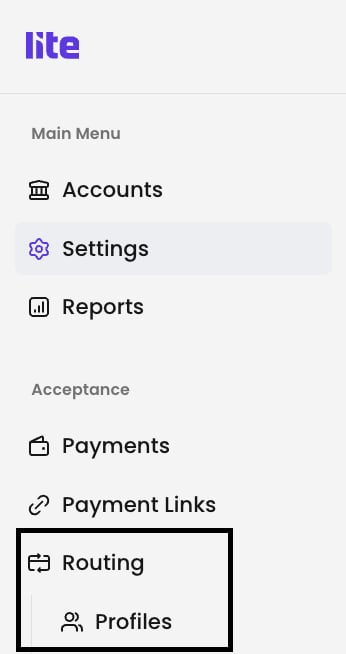
1. From the navigation menu, go to **Routing > Profiles**.
   <img src="https://mintcdn.com/lite-92e7ad3a/jSdZ8I1UAMPQe00h/assets/sandbox-testing/05-open-routing-profiles.png?fit=max&auto=format&n=jSdZ8I1UAMPQe00h&q=85&s=95363280907cc99bb5551861c1b9a34d" alt="Open Profiles under Routing" width="346" height="654" data-path="assets/sandbox-testing/05-open-routing-profiles.png" />
2. Select **Create New Profile**.
   <img src="https://mintcdn.com/lite-92e7ad3a/jSdZ8I1UAMPQe00h/assets/sandbox-testing/06-create-routing-profile.png?fit=max&auto=format&n=jSdZ8I1UAMPQe00h&q=85&s=d10602302b857bfba760f59eef55fd55" alt="Create a routing profile" width="2048" height="307" data-path="assets/sandbox-testing/06-create-routing-profile.png" />
3. Add a simple routing rule for testing and select the test connector configured for your account.
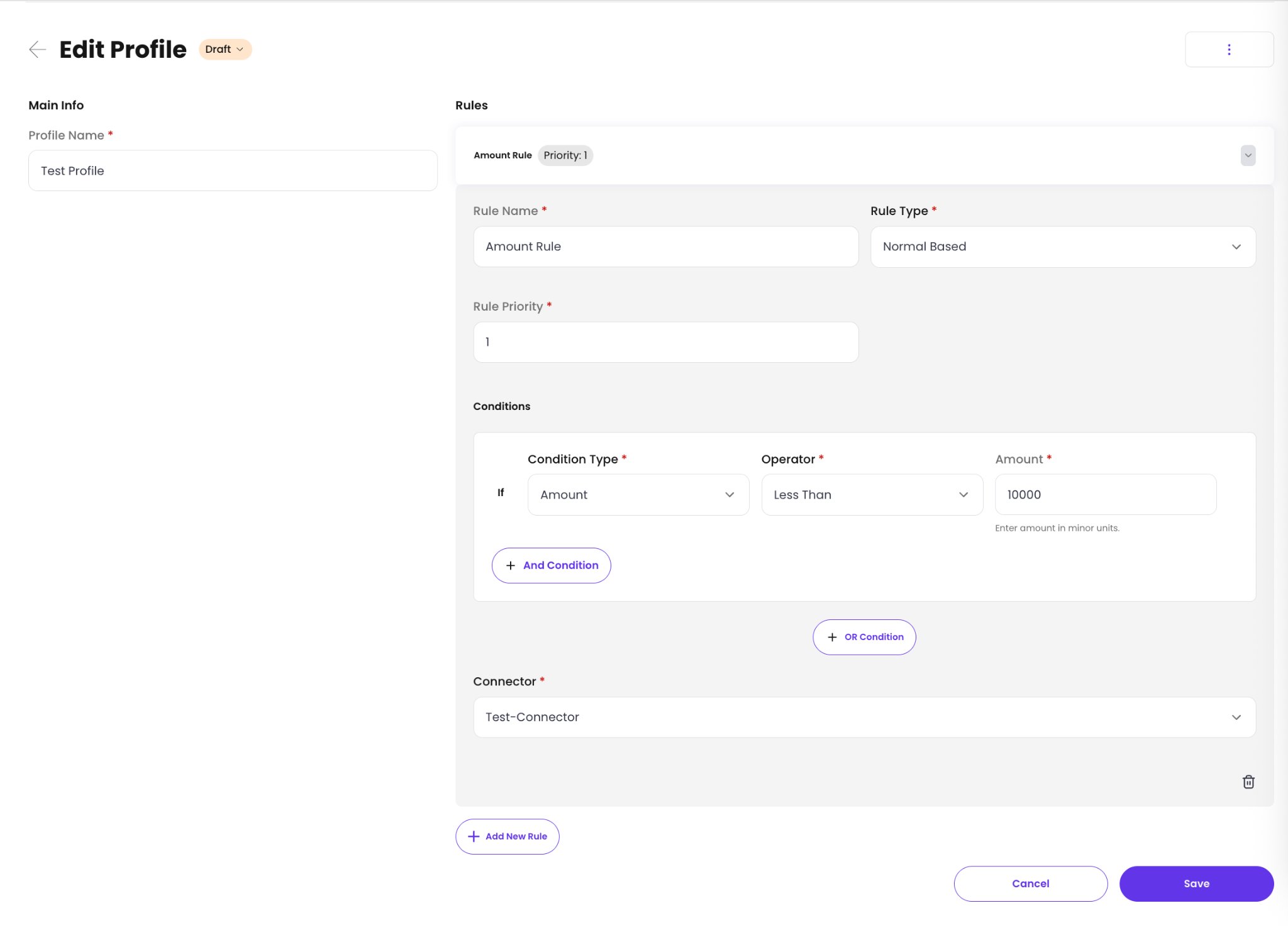
   <img src="https://mintcdn.com/lite-92e7ad3a/jSdZ8I1UAMPQe00h/assets/sandbox-testing/07-configure-test-routing-rule.png?fit=max&auto=format&n=jSdZ8I1UAMPQe00h&q=85&s=3edd202de6b6e34702db57d45573a3d8" alt="Configure a routing rule with the test connector" width="2048" height="1479" data-path="assets/sandbox-testing/07-configure-test-routing-rule.png" />
4. Save the profile, change its status to **Active**, and set it as the default profile.
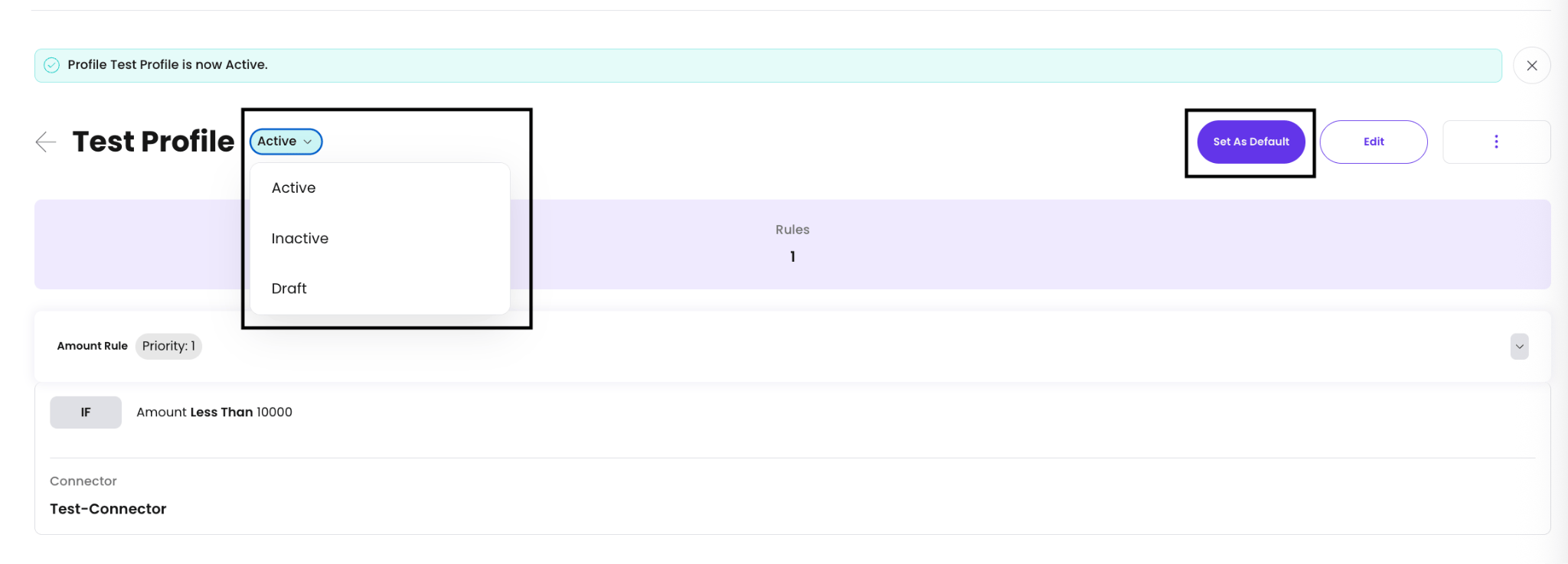
   <img src="https://mintcdn.com/lite-92e7ad3a/jSdZ8I1UAMPQe00h/assets/sandbox-testing/08-activate-default-routing-profile.png?fit=max&auto=format&n=jSdZ8I1UAMPQe00h&q=85&s=5c1e473c4d7f827f533a450f552f26cd" alt="Activate the routing profile and set it as default" width="2048" height="737" data-path="assets/sandbox-testing/08-activate-default-routing-profile.png" />

## Configure an e-commerce payment processing channel

1. Go to **Settings > Acceptance**.
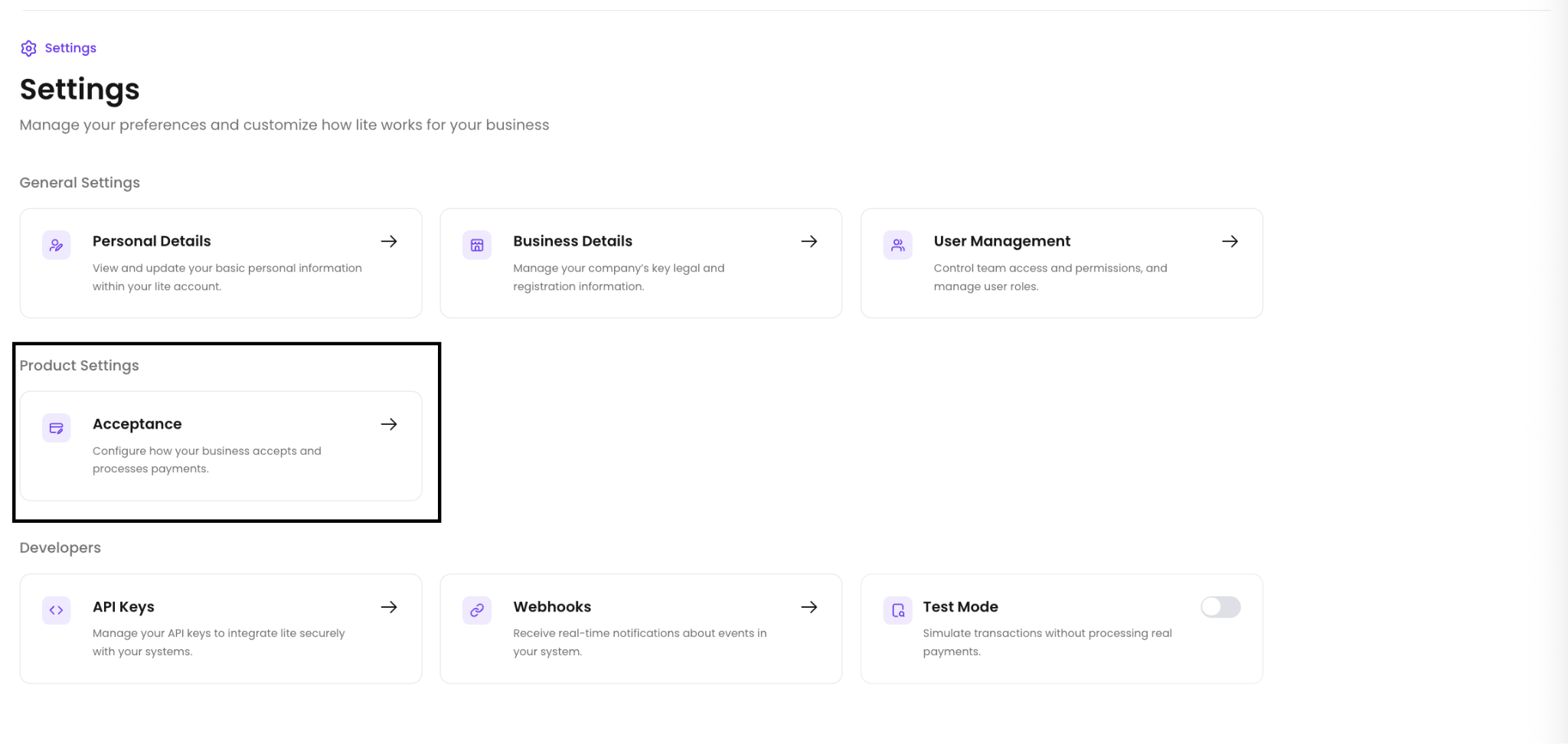
   <img src="https://mintcdn.com/lite-92e7ad3a/jSdZ8I1UAMPQe00h/assets/sandbox-testing/09-open-acceptance-settings.png?fit=max&auto=format&n=jSdZ8I1UAMPQe00h&q=85&s=9d4eced38b5ca03d026b79b0d6b28968" alt="Open Acceptance settings" width="2048" height="972" data-path="assets/sandbox-testing/09-open-acceptance-settings.png" />
   Under **E-Commerce Channels**, select **Add New Channel**.
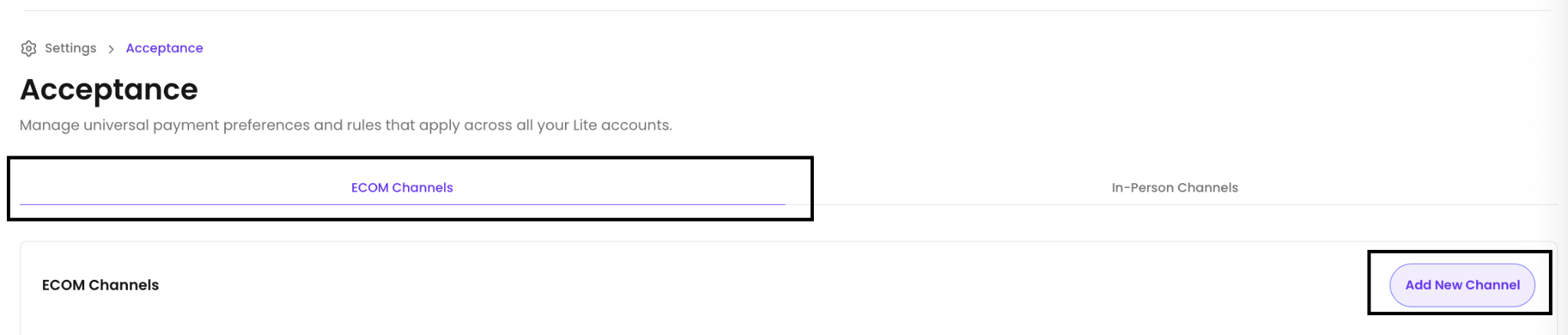
   <img src="https://mintcdn.com/lite-92e7ad3a/jSdZ8I1UAMPQe00h/assets/sandbox-testing/10-add-ecommerce-channel.png?fit=max&auto=format&n=jSdZ8I1UAMPQe00h&q=85&s=09fe619ebcd250ef2a8201f44539ea8d" alt="Add a new e-commerce channel" width="2048" height="437" data-path="assets/sandbox-testing/10-add-ecommerce-channel.png" />

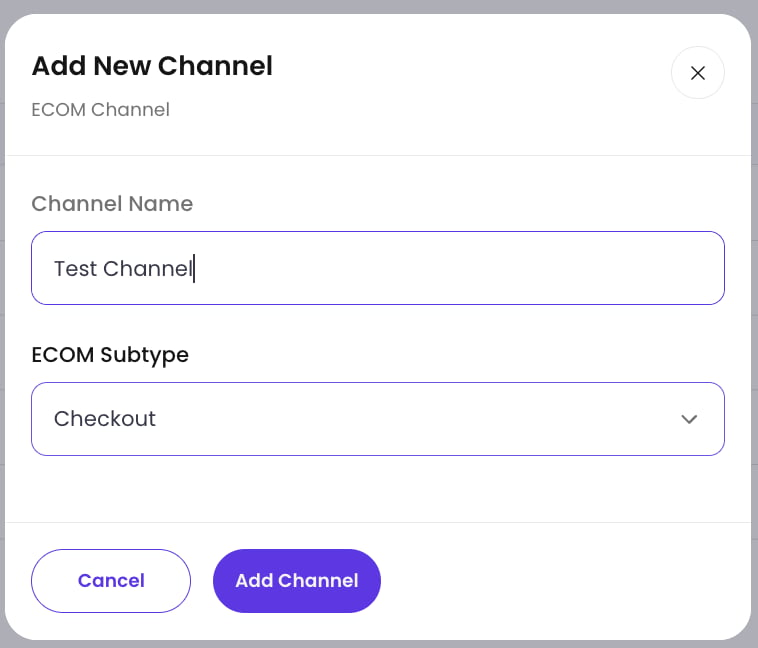
2. Enter a channel name. Select a subtype if you want to separate this channel from your other e-commerce channels.
   <img src="https://mintcdn.com/lite-92e7ad3a/jSdZ8I1UAMPQe00h/assets/sandbox-testing/11-enter-channel-details.png?fit=max&auto=format&n=jSdZ8I1UAMPQe00h&q=85&s=f46329795b86ef3fd2768c4c748f9de4" alt="Enter the channel name and subtype" width="758" height="648" data-path="assets/sandbox-testing/11-enter-channel-details.png" />

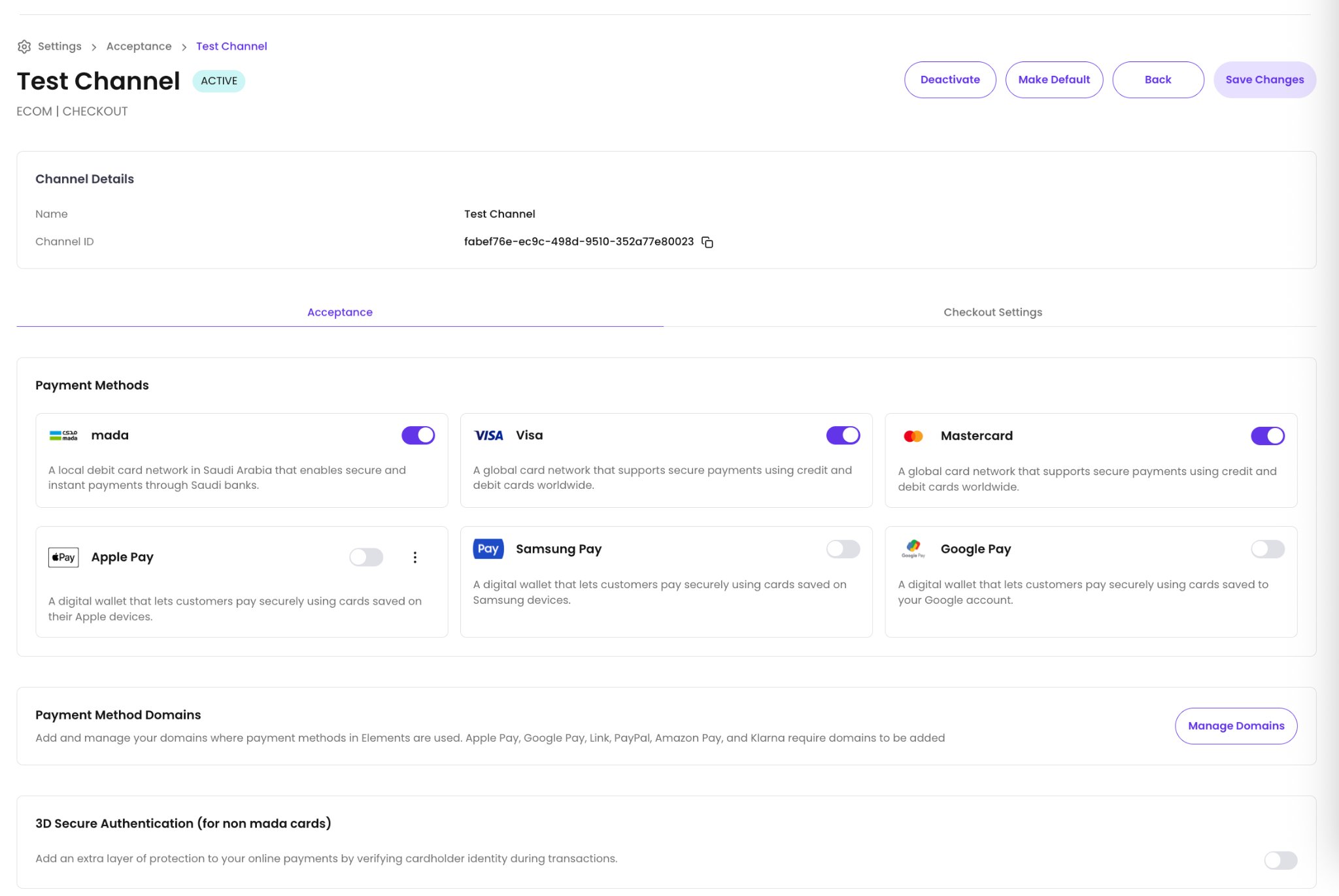
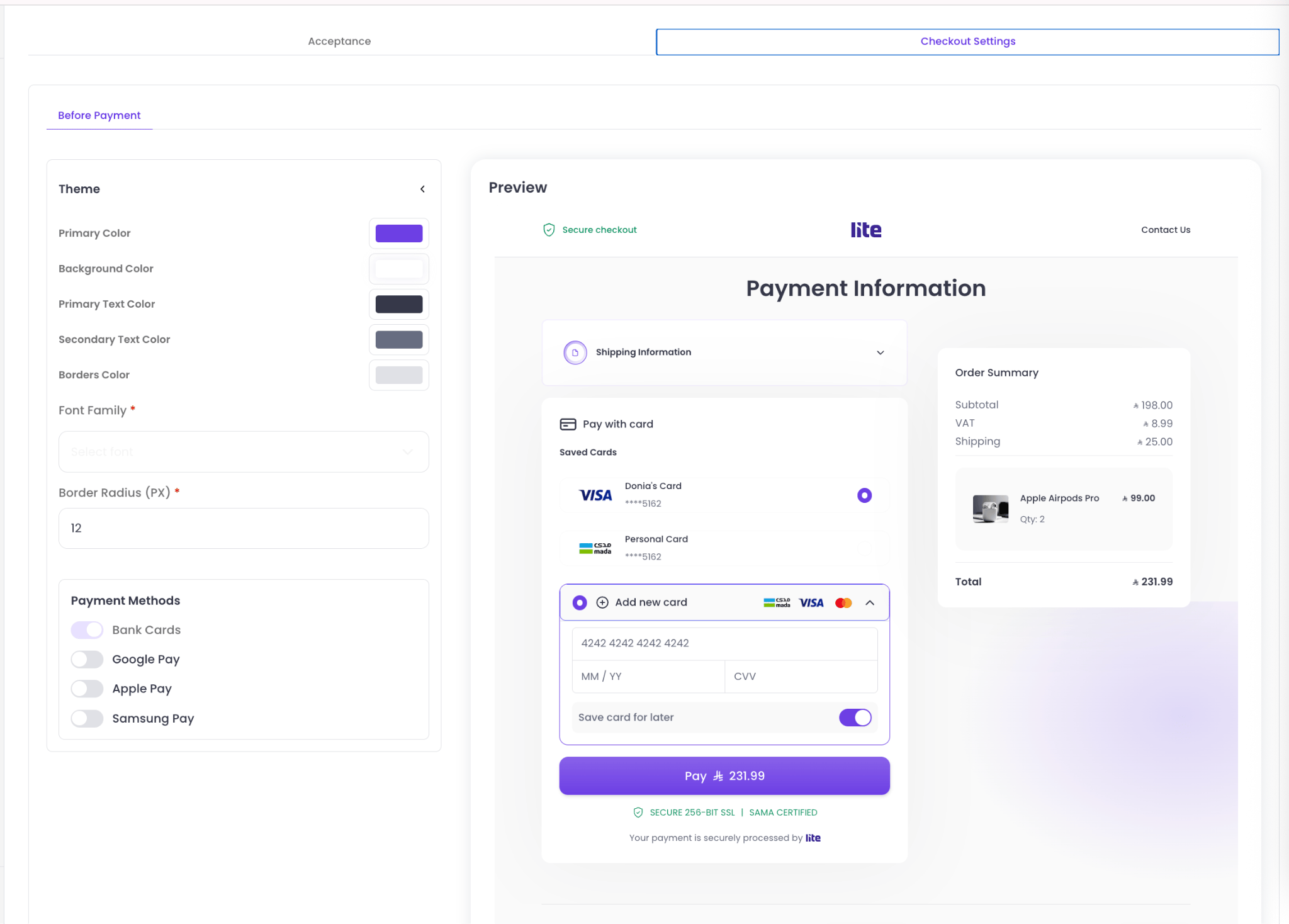
3. Configure the channel's payment methods and checkout styling.

   Select the payment methods you want to test.
   <img src="https://mintcdn.com/lite-92e7ad3a/jSdZ8I1UAMPQe00h/assets/sandbox-testing/12-configure-payment-methods.png?fit=max&auto=format&n=jSdZ8I1UAMPQe00h&q=85&s=0408282e6c609f3898844136b12ae96f" alt="Configure payment methods for the channel" width="2048" height="1371" data-path="assets/sandbox-testing/12-configure-payment-methods.png" />

   Configure the checkout appearance under **Checkout Settings**.
   <img src="https://mintcdn.com/lite-92e7ad3a/jSdZ8I1UAMPQe00h/assets/sandbox-testing/13-configure-checkout-styling.png?fit=max&auto=format&n=jSdZ8I1UAMPQe00h&q=85&s=a0f4647bdaf0722029c04d673c148da5" alt="Configure the channel checkout styling" width="2048" height="1468" data-path="assets/sandbox-testing/13-configure-checkout-styling.png" />

   > If you use the Web SDK, only the payment-method configuration is required.

4. Copy the channel ID and include it in the Create Session payload as `channel_id`.

   <img src="https://mintcdn.com/lite-92e7ad3a/jSdZ8I1UAMPQe00h/assets/sandbox-testing/14-copy-channel-id.png?fit=max&auto=format&n=jSdZ8I1UAMPQe00h&q=85&s=d950c6fb61c44270ca99d4767f18ec04" alt="Copy the channel ID" width="2048" height="220" data-path="assets/sandbox-testing/14-copy-channel-id.png" />
   You're all set. You can now process payments in test mode through checkout.
